

Invite members and understand roles
Manage membership using the permissions available to your account.
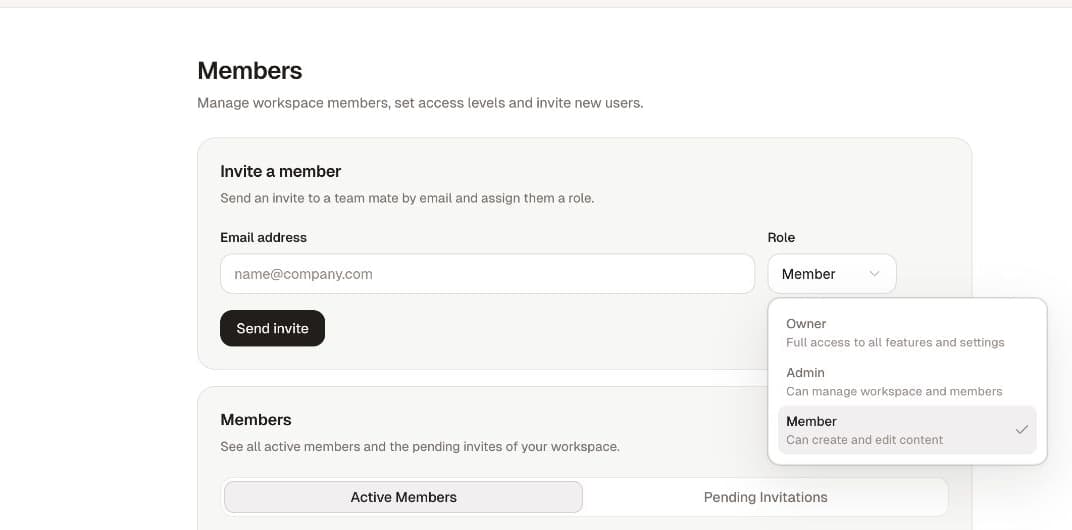
Open Settings → Members. Active Members lists people who belong to the workspace; Pending Invitations shows invitations awaiting acceptance.
Invite someone
If you have permission to invite members, use the invitation form, enter one email address, choose an available role and select Send Invite. Check the address before sending.
The recipient should accept using the invited address. If they need an account, they should follow the invitation's sign-up instructions with that address. Joining the workspace does not transfer ownership of its billing account or grant every feature automatically.
Choose appropriate access
Owners carry ownership and billing responsibilities. Administrators manage permitted workspace operations. Members use enabled tools. Additional role configuration may apply where the workspace supports it.
Give the person the access needed for their work. Do not grant ownership just to resolve a missing button without checking the cause. See access and permissions.
Pending invitations
Check spelling, the invited address and the recipient's spam folder. If the invitation is no longer usable, an authorized person can revoke it and issue a new one. Revoking an invitation invalidates that invitation; coordinate before replacing it.
Change or remove access
Use the member's role or actions control when it is available to you. Review the person and role before confirming. A workspace needs an owner; do not remove or demote the last owner without resolving ownership first.
Removing membership is different from deleting the workspace. If a removed person appears to retain access, report the account, workspace and observed behavior rather than assuming an open tab proves continued authorization.
For cross-workspace access concerns, report the exact membership issue.