

Update general workspace settings
Change the workspace identity and understand setup and deletion controls.
Open Settings → General under Workspace. Confirm the workspace name before changing settings that affect the team.
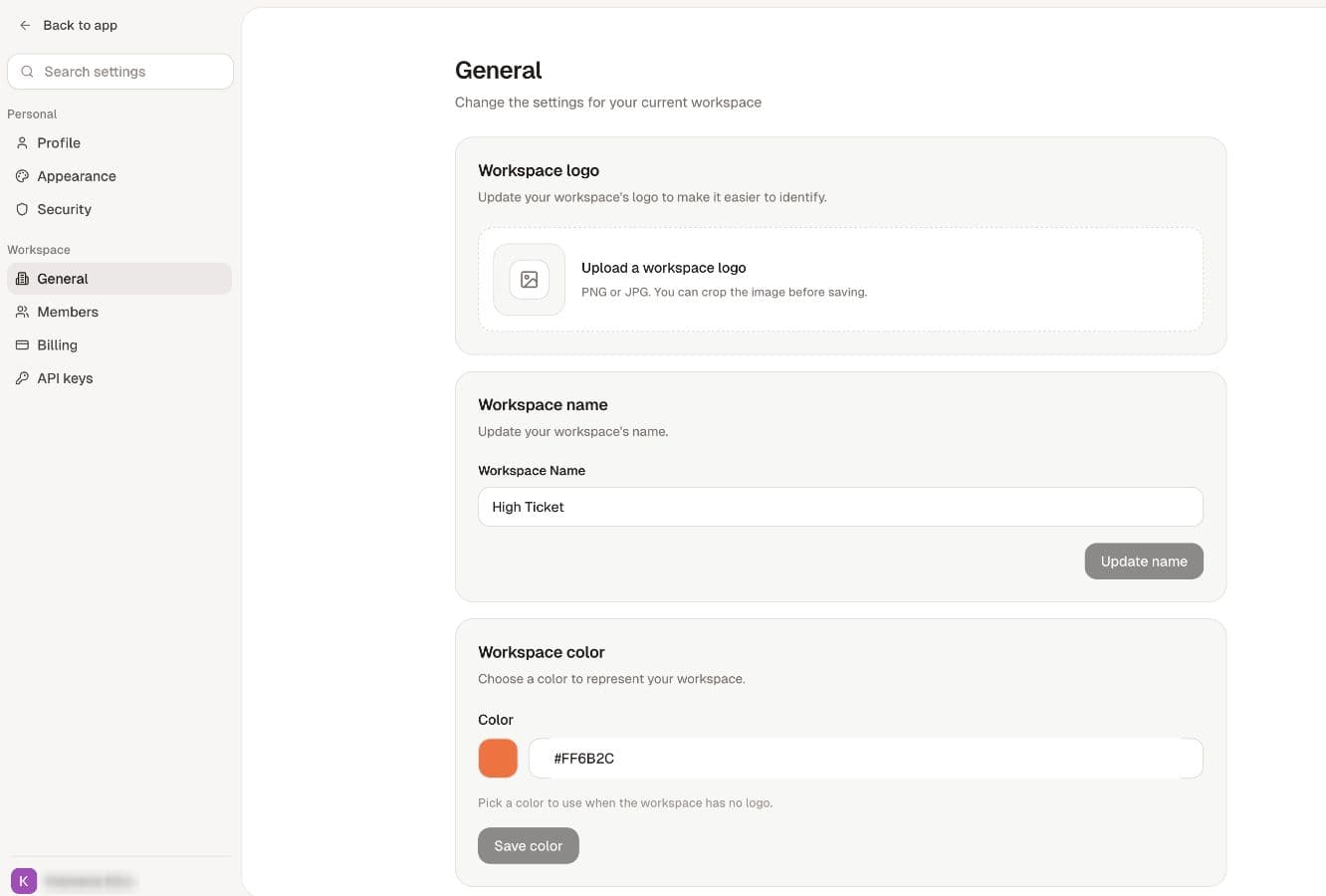
Name, logo and color
- Workspace name: edit Workspace Name, then select Update name. Reopen the workspace to check the result.
- Workspace logo: select Choose File, use a supported PNG or JPG, and review the crop before saving.
- Workspace color: choose the color or enter its hex value, then select Save color.
Use a name and image that make the workspace easy to recognize. If an action is rejected, check permissions instead of repeatedly resubmitting it.
Restart onboarding
Restart onboarding reopens setup and changes its completion state. Read the confirmation carefully. It is not a general fix for missing products, a failed generation or unassigned billing. Ask the owner to coordinate a reset when other people use the workspace.
See onboarding for the setup steps and what to check afterward.
Delete a workspace
Deletion removes workspace access. The current confirmation describes a 30-day retention period before permanent purge. Do not treat that as an automatic backup or assume you can restore it yourself.
Before using Delete workspace, keep needed exports, coordinate with the owner and check subscriptions separately. Read the exact confirmation and any billing requirements shown. Deleting a workspace is not a reliable substitute for cancelling every subscription or external service.
If you deleted the wrong workspace, contact the team promptly with its name and time of deletion. Do not promise restoration without confirmation from the team.