

Find, organize and export chats
Use chat history, names, pins and projects to keep conversations easy to find.
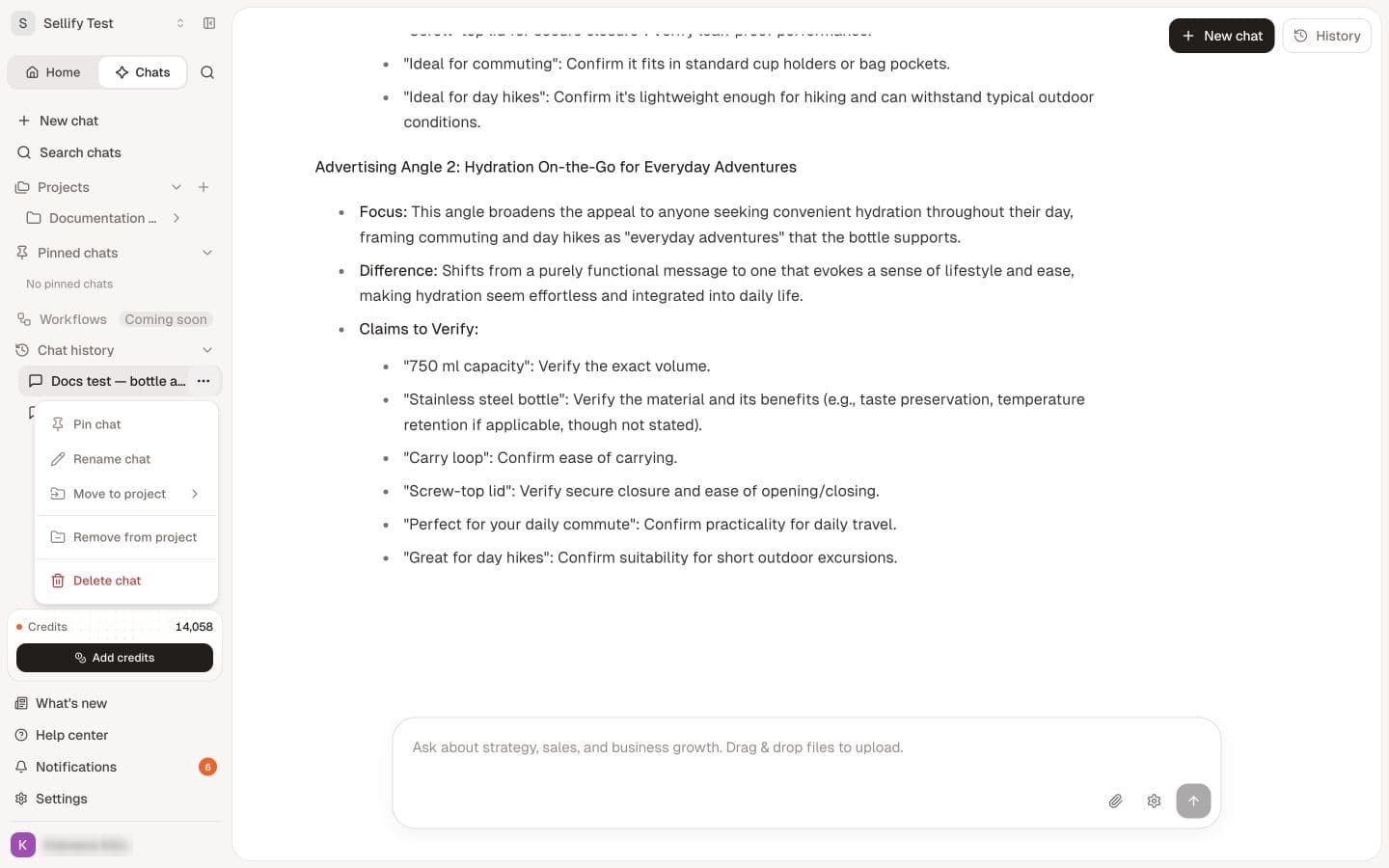
Open Chats in the app sidebar. Recent conversations appear under Chat history. A conversation belongs to a chat history; a product or buying angle belongs to its own product library.
Find an earlier conversation
Use Search chats or Open chat history, then search for a recognizable title or phrase. Open the result and check that it contains the conversation you expected.
If the chat appears missing, confirm your account and workspace. Do not create a new workspace merely to recover a conversation.
Rename and pin
- Open the actions menu beside the chat title.
- Select Rename chat, enter a useful name, and select Save chat title.
- Use Pin chat to keep an important conversation under Pinned chats.
A name such as “Bottle — commuting angle” is easier to retrieve than “New Conversation.”
Group chats in a project
- Select Create project beside Projects.
- Enter a project name and select Create project.
- Open a chat's actions menu.
- Select Add to project, then choose the project.
- Expand the project to find the chat again.
A chat project organizes conversations. Creating one does not create a Sellify product or generate research.
Export a conversation
Open the conversation, then Chat Settings → Export chat. The export downloads as a Markdown file. Open the file and check that the messages you need are present. Attachment references in an export are not a backup of every original attachment.
Delete a chat only when you intend to remove the conversation. Export important material first; do not use deletion to fix an answer you merely want to revise.
Continue with better prompts.