

Use Sellify Agent for product and advertising questions
Ask focused questions, review the answer and keep useful conversations organized.
Use Sellify Agent to explore a product, compare advertising ideas or review information you provide. It is useful when you need help thinking through the next decision.
Watch the walkthrough
Read the walkthrough steps
- Start a chat with one clear task and relevant product facts.
- Check the answer against your source material.
- Use chat actions to rename, pin or organize the conversation.
Start a conversation
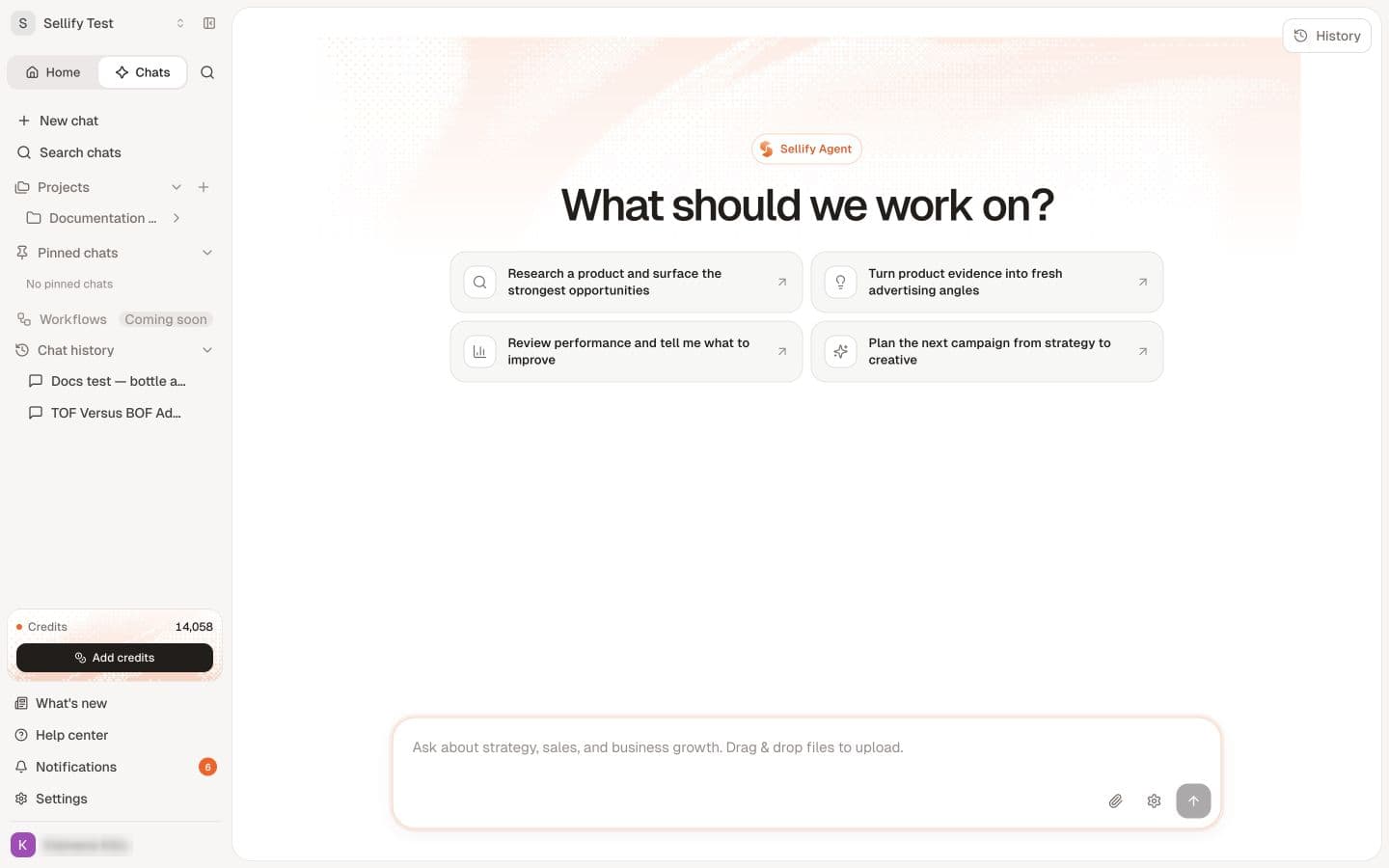
- Open Chats near the top of the app sidebar.
- Choose New chat, or use a suggested prompt on the Agent home screen.
- Describe the product, customer, facts and outcome you want.
- Send the message and review the answer.
The current home screen says What should we work on? Suggestions include researching a product, finding advertising angles, reviewing performance and planning a campaign.
Give it enough context
Try this fictional example:
A 750 ml stainless steel bottle has a carry loop and screw-top lid. It is intended for commuting and day hikes. Suggest two angles using only these facts, explain the difference, and list claims I need to verify.
For performance questions, provide the actual figures, date range and what you changed. Do not assume the Agent can see every connected account or every recent experiment. Ask it which information it is using when that matters.
Review before acting
Check product facts, calculations and any proposed claims. If the answer is too broad, explain what is missing and ask for a narrower revision. A useful response can still contain an unsupported assumption.
An answer in chat is not automatically a saved product, angle or ad. When enabled tools offer an action, read the proposed action and any confirmation before proceeding, then verify the resulting record. Available tools depend on the workspace and your access.
Keep useful conversations
Use Search chats, Chat history, Pinned chats and Projects in the sidebar. The conversation menu lets you rename, pin and organize a chat. Organize chats and projects for the steps.
Inside a conversation, Chat Settings → Export chat downloads the conversation as Markdown. Attachment guidance explains file inputs.
Know when to use support
For account access, unexplained charges, failed saves or bugs, use support. The Agent's answer is not a billing adjustment or confirmation that a technical issue has been fixed.