

Review and update a saved product
Correct product details and check the saved result before creating new work.
Keep the saved product aligned with what you currently sell. An outdated description or URL can affect the context used for later research and creative.
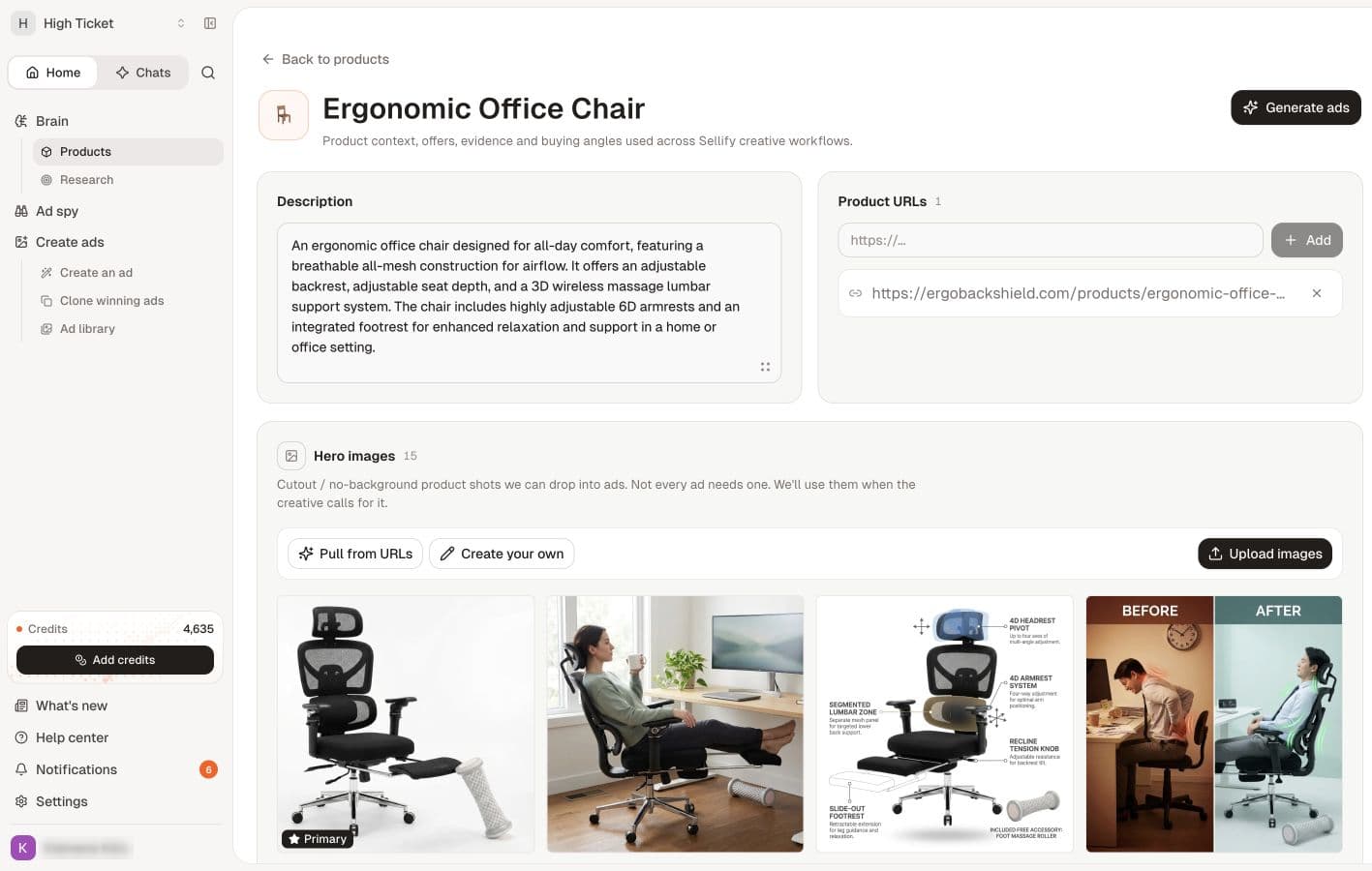
Open the product
- Open Products under Brain.
- Search for the product by name, then open it.
- Check the name, Description, Product URLs, Hero images, Offers and Research.
The product library
Each product in Products is a card with its image or emoji, name and description, and counts for its angles, URLs and offers. While a batch of angles is being written for a product that has none yet, the card reads Generating angles instead of a count. The toolbar above the list shows how many products you have against your plan's allowance, such as 1 of 5 products, beside the workspace's angle and offer totals. Use the search box to filter by name.
Rename or delete from the library
The menu on a product card offers Rename and Delete. Rename opens a dialog for the new name. Delete asks you to confirm and explains what happens to the product's angles: angles linked to other products stay where they are, and angles linked only to this product become unassigned. Deleting cannot be undone.
Change the name
- Select Edit product name beside the product title.
- Enter a recognizable name.
- Select Save product name. Use Cancel product name edit to discard the edit.
- Reopen the product and check that the title is correct.
Correct the description
Edit the Description field. The current field saves when you leave it; a Save control can also appear while editing. Wait for the save to finish before navigating away, then reopen the product to check the result.
Avoid pasting temporary notes into this field unless they should become product context. If you only want to brainstorm, use a chat instead.
Maintain source URLs
In Product URLs, enter a relevant product-page URL and select Add. Remove an obsolete URL with its remove control only when you intend to stop using that source.
Check each source for the right product, variant and current details. Updating a source list is different from requesting another generation run.
Manage buying angles
The Buying angles section lists the angles linked to this product, six at a time with Show all (n) to expand. Three buttons sit above them. Generate angles writes a batch of six from the product's description, URLs and research, at about 7 credits per angle (your provider configuration can change that). Link existing attaches an angle already written for another product. New angle opens the panel for a single angle. If you are out of credits, the section shows You're out of credits with a View plans link. Angles are covered in Work with angles.
Generate ads from the product page
Generate ads at the top of the page opens a panel with two routes: Create an ad, which starts from this product and lets you choose an angle, and Clone winning ad, which picks a proven ad and adapts it to this product. The Ads section further down lists the image ads generated for this product, with View all to open the full list. See Prepare and review your first ad and clone a reference ad.
Review downstream work
Do not assume that changing product details rewrites every angle or image you already created. Review existing outputs separately, particularly if the change affects a material claim, image, price or offer.
For new work, choose a supported angle using the corrected context. If a save reports an error, reopen the product before repeating it; the screen and saved state can temporarily differ.
Related
Add your first product · Prepare and manage product images · Work with angles