

Add an offer to a product
Keep discount and promotion context accurate when preparing ads.
An offer describes commercial terms you actually provide. It can help shape an ad, but it does not configure your store's checkout or apply a discount there.
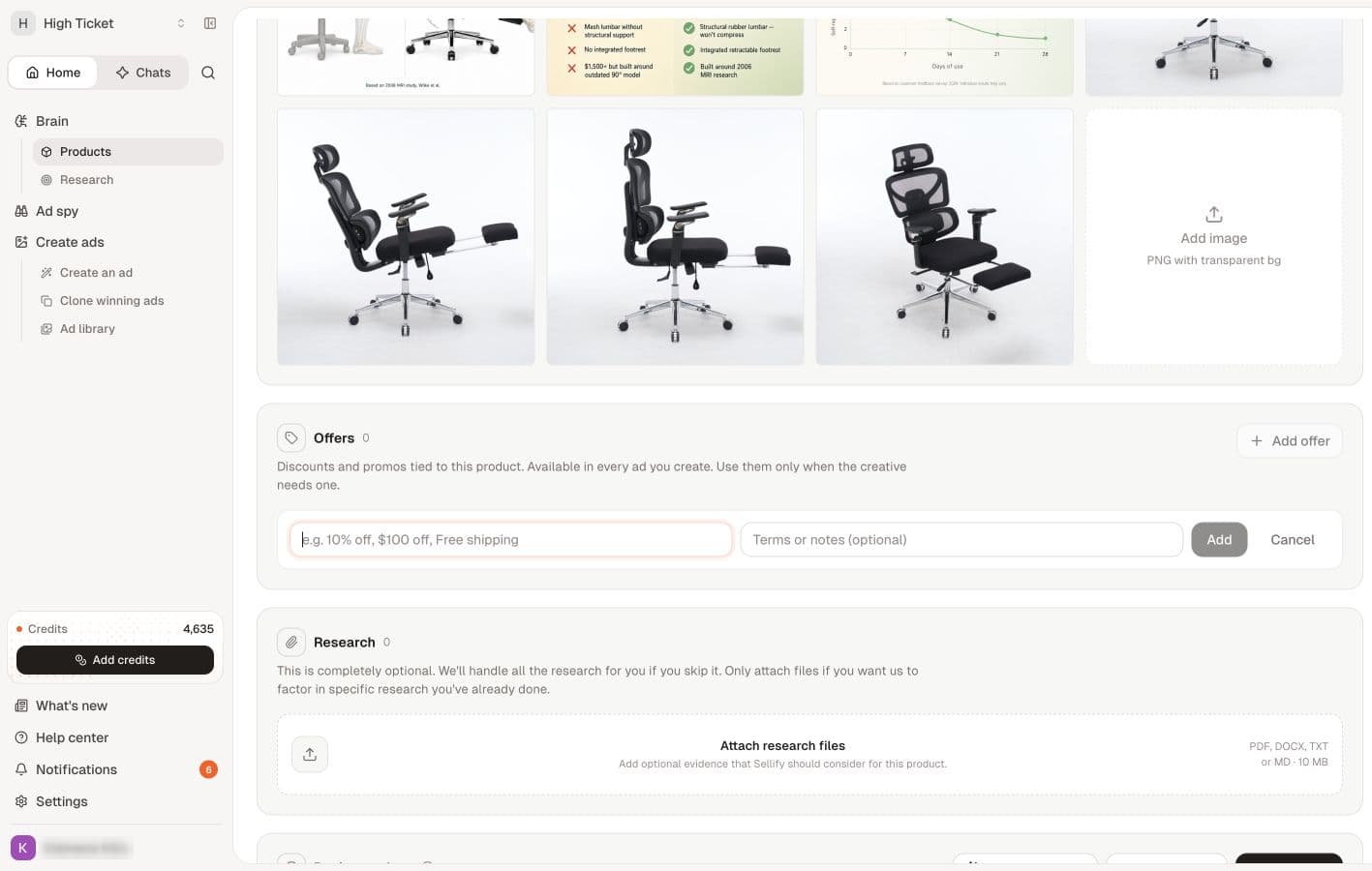
Prepare the terms
Before adding an offer, check the amount, eligible products, dates and any conditions. Make sure your store and landing page present the same terms. You can create ads without an offer when a discount is not part of your strategy.
Add an offer
- Open the product and find Offers.
- Select Add offer.
- Enter a short label and the supporting description.
- Select Add. Use Cancel to discard the new offer.
- Check that the offer appears under the intended product.
A fictional example is a label such as “Bundle of two” with a description that states the actual bundle contents. Replace examples with your real terms; do not invent urgency or a discount.
When an offer changes
Review the offers attached to the product before making new creative. Remove an obsolete entry if you no longer want it available. Also review previously generated ads: removing an offer does not prove that old images or downloaded copy have changed.
Before using the creative
Check that the offer shown in the ad matches the destination page and checkout. Confirm any code, exclusions and end date. An attractive promotion that customers cannot redeem creates a poor buying experience.
Continue with the ad brief and review checklist.