

Understand credits before generating
Check your balance, understand which workflows use credits and distinguish credits from product limits.
Credits are used for metered actions in Sellify, including AI-assisted product entry, buying-angle generation and creative generation. Sellify is paid software; any included or promotional credits depend on your access arrangement.
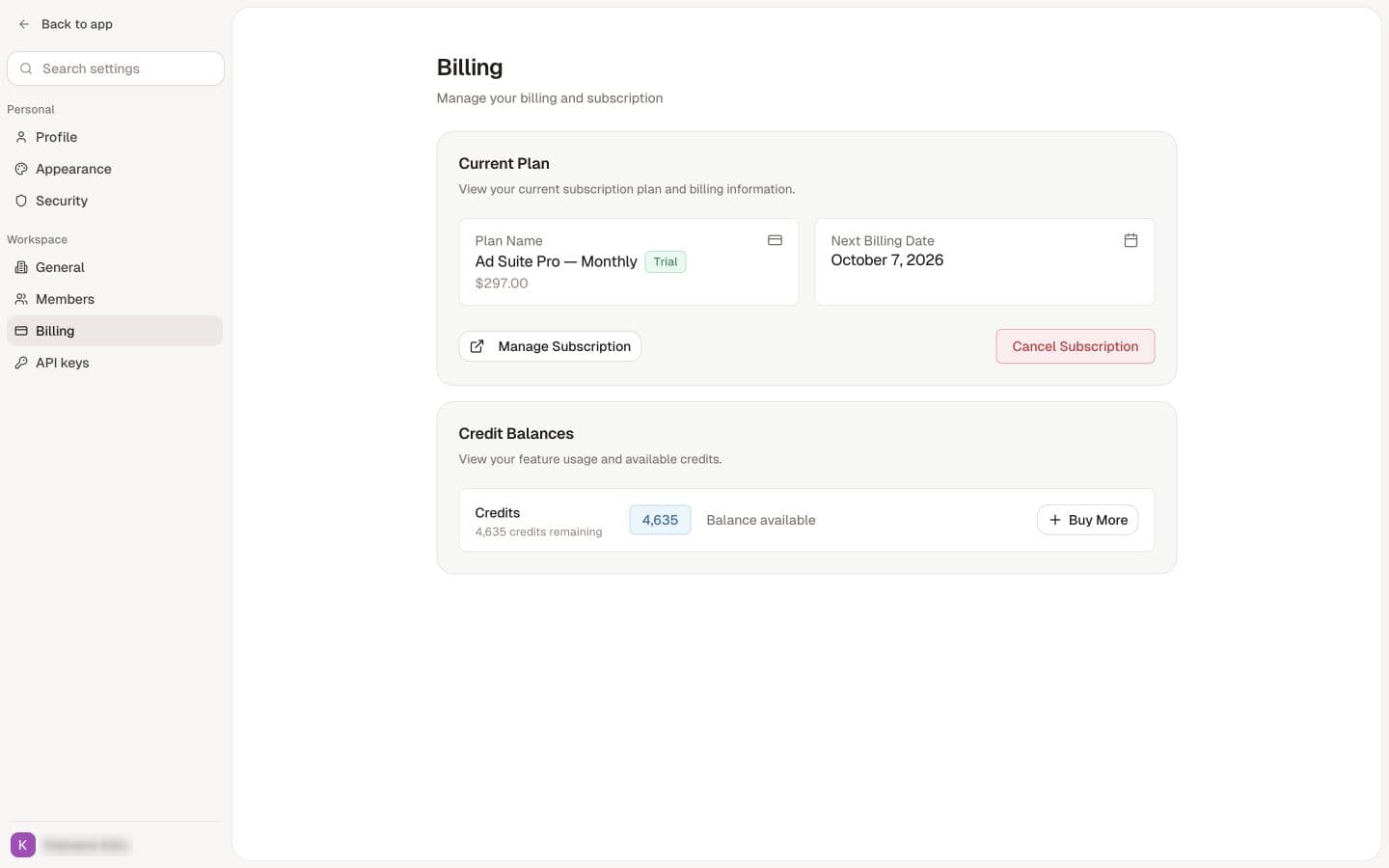
Check your balance
- Confirm that you are in the workspace you intend to use.
- Find Credits near the bottom of the app sidebar.
- Read the balance before starting a generation task. If it looks unchanged after a completed task, reload the page to get a fresh view.
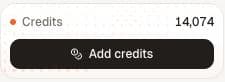
Account-specific balances are hidden in the screenshots. Check your workspace for its current allowance and remaining credits.
What uses credits
- Use AI in the product form drafts product information from a URL. Each successful draft request is a separate metered action, even if you do not save the product afterward.
- Generate angles requests buying angles for your product. The product-page button currently requests six. Usage is based on the angles actually created.
- Other metered actions include generating or editing ad images and discovering or generating hero images. Costs can differ by action and account configuration.
Saving a product with URLs can start background research and enrichment, so consider the whole workflow rather than only the button you just pressed. See Add your first product.
Credit usage varies by action. Check any cost shown in the interface. If the cost or allowance you need is unclear, ask support before starting a large batch.
Credits and product slots are different
Credits cover usage. Product slots determine how many products your plan allows you to keep.
If you see Product limit reached, adding credits alone will not resolve it. Use View plans in that dialog to review the available options. A workspace can have credits remaining and still be unable to create another product.
Review top-up options
Select Add credits to open Purchase Credits. Review the package, credit amount and price shown for your account before proceeding. Opening the dialog does not purchase a package.
Available packages and plan allowances may vary. Use the current offer shown to your account for the applicable price and allowance.
If a task fails or the balance seems wrong
Check whether a result was created before retrying. Reopening existing work is different from making a new generation request.
Starting a new batch is a new request and can use more credits. If a task fails, check its status and your balance before starting again. Refunds and adjustments depend on the action and your account terms.
If something still looks wrong, contact support with the workspace name, action, approximate time, error message and the balance you expected. Never include passwords or payment-card details.
Next step
With your workspace and balance checked, add a product or generate buying angles.