

Find, review and download your ads
Open saved creative, inspect the result and keep an export for your campaign.
Open Create ads → Ad library to find saved creative. The current image-ad area includes All ads and folders. Choose a descriptive folder name when grouping a test or product.
Watch the walkthrough
Read the walkthrough steps
- Select your product and accurate photos.
- Write a focused brief. Start with one image; generation uses credits.
- Find the completed result in Ad library.
- Review the image and claims. Download when ready.
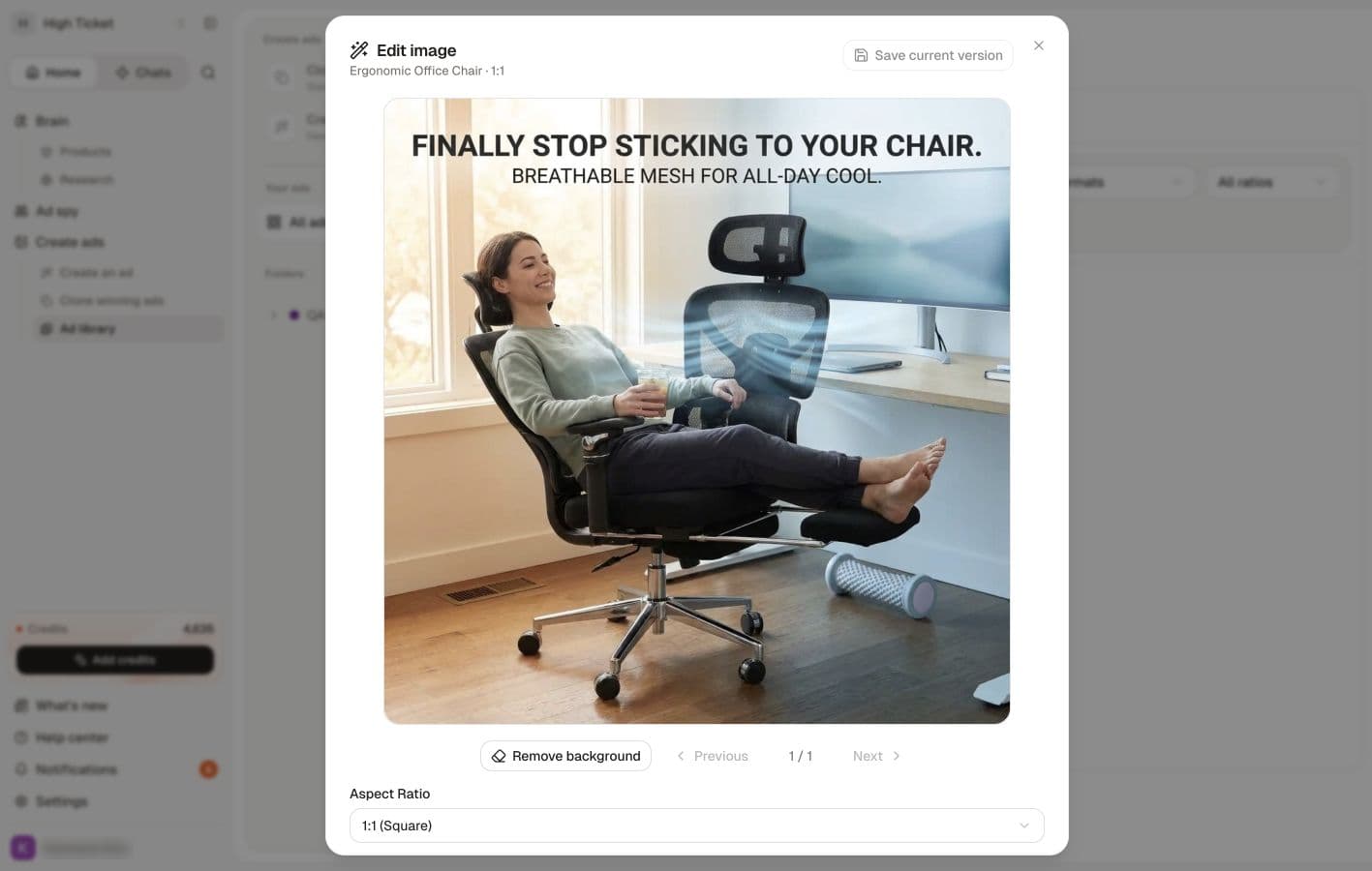
- Edit image creates a new version. Review it before exporting.
The three tabs
All ads has three tabs.
| Tab | What is on it |
|---|---|
| Library | Every ad you have generated, as individual images. |
| Recent generations | Your runs, newest first, grouped by day. |
| Recently deleted | Ads you deleted, kept so you can get them back. |
In Library, search by product, angle or format, then narrow by product, Ad format or Aspect Ratio. Sort by offers Newest and Recently edited. Hover a card for its quick actions: Download, Create variation, Edit image, Save to folders and More actions (Copy link and Delete).
Find an earlier result
Open the relevant ad or generation and check its product, prompt and output. A generation can contain several variations. Finding an item in the library is different from confirming that it is accurate or ready to publish.
If work appears missing, check the workspace, filters and folder. Look in All ads before creating another batch.
Review one image
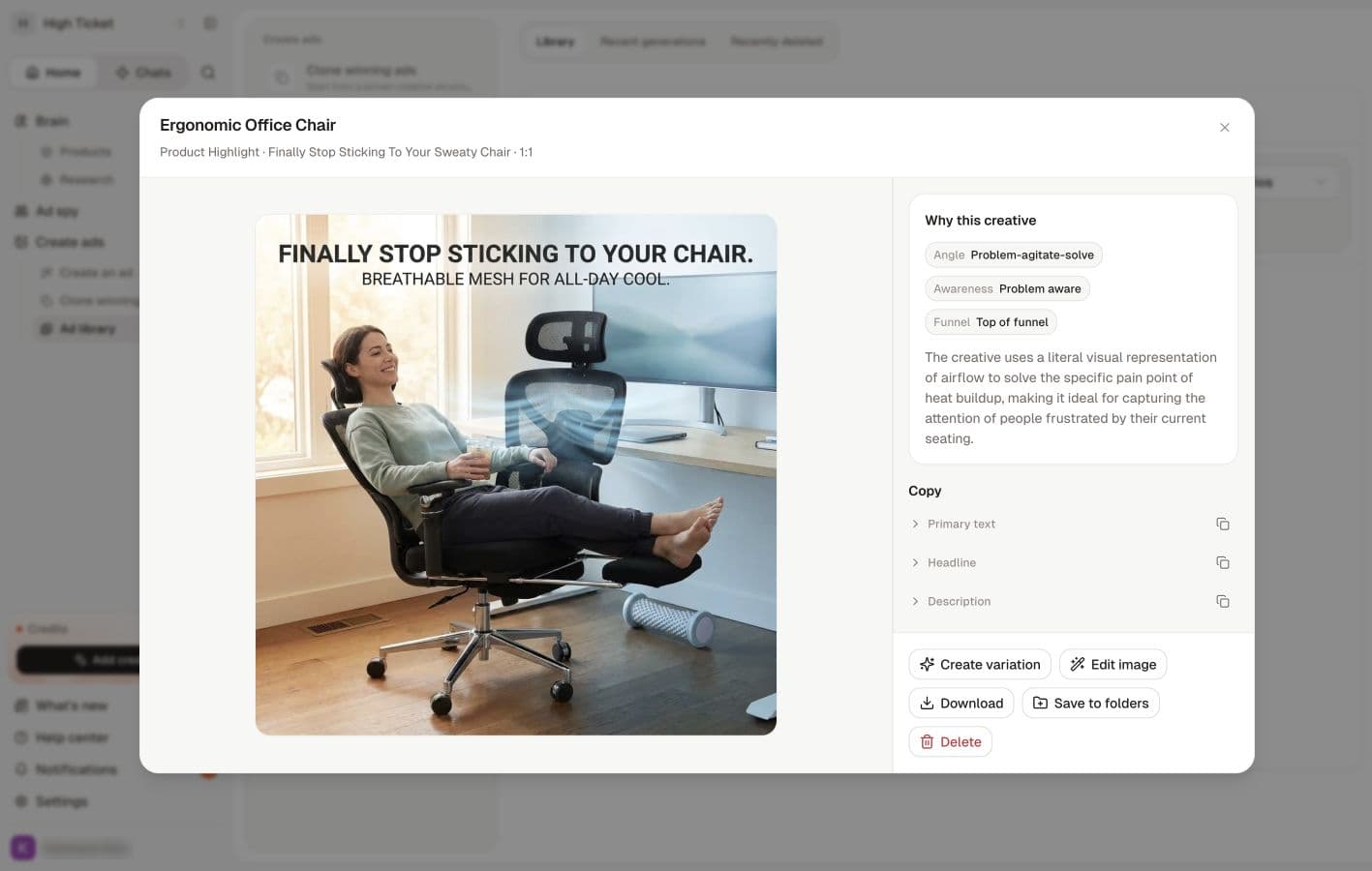
Open the generated ad details. Compare the product's shape, colors, labels and packaging with the real product images. Read the headline and any small text. Check that the offer and destination match your store.
The current result controls can include Create variation, Edit image, Save to folders and More actions. Review which image you selected before using them. A variation or AI edit requests new work and can use credits; keep the original for comparison.
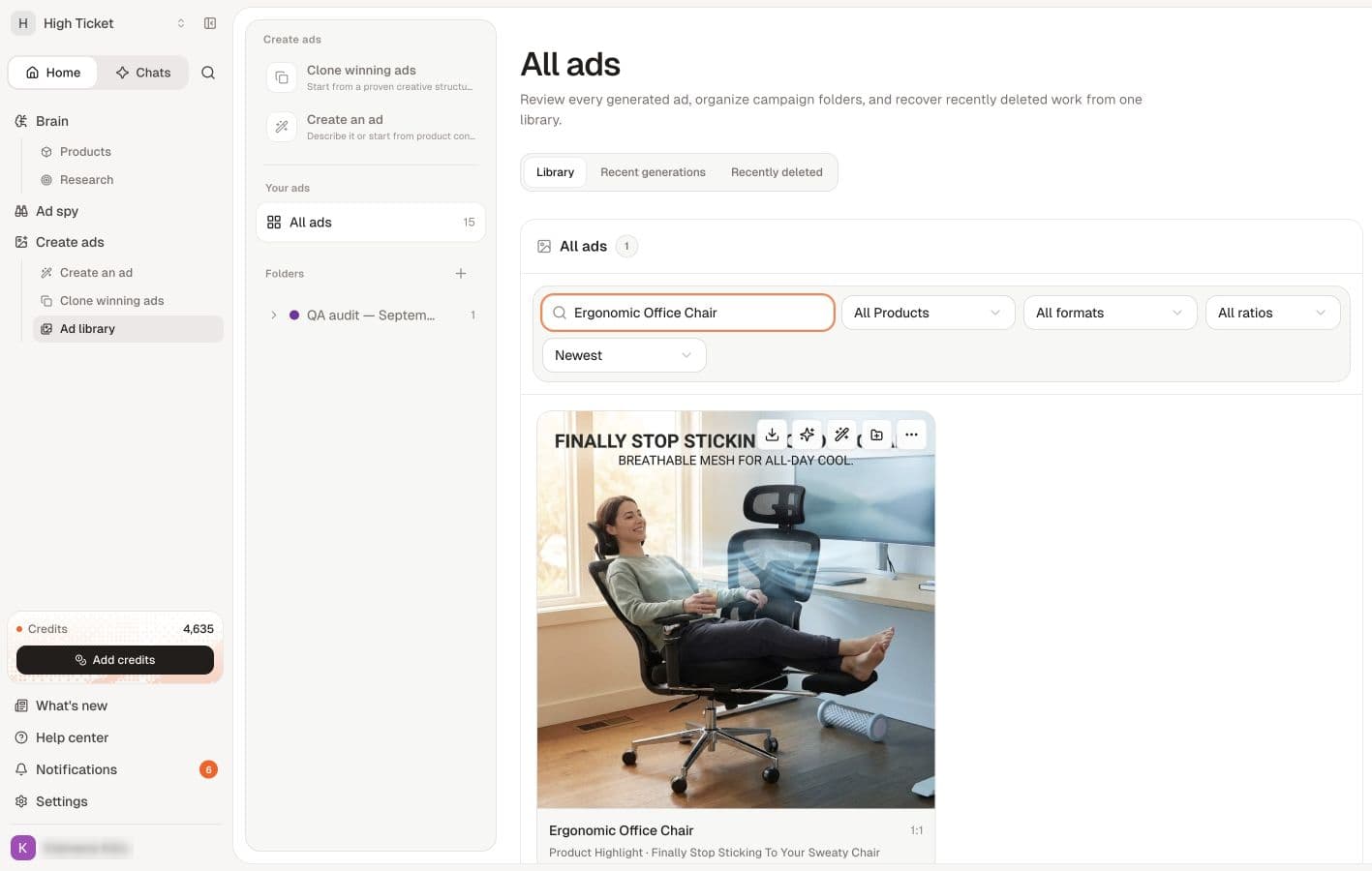
Download
Use Download on the image or in its detail view. If the current selection controls offer a bulk download, check the selected images before requesting it.
Open your browser's downloads list and then the downloaded file. Confirm it is an image or expected archive, that it opens, and that the dimensions suit your intended placement. A button click alone is not confirmation that an export finished.
If no file arrives, check whether the browser reported a blocked or failed download. Reopen the saved ad and try once more after checking the message. Report a persistent problem with the generation URL and time; you do not need to regenerate a good image just because its download failed.
Select several at once
Tick Select ad on any card to start a selection. A bar appears with Download, Save to folders, Delete and Clear selection. Downloading a selection produces a ZIP.
Before the ZIP starts, Review before downloading lists anything worth a second look:
- Hero reused: the same hero image appears on ads for different products.
- Check URL: a destination URL looks like a collection or category page, or does not match the linked product page.
Neither blocks the export. Select Download ZIP to continue or Cancel to fix the inputs first. When nothing is flagged, the dialog says no duplicate hero-image or destination URL warnings were found.
Recent generations
Each row is one run, with its time, how many variations it produced, its type and a Queued, Generating… or Failed badge. Filter by Category (Fresh or Variation) and When (Today, Last 7 days or Last 30 days).
Expand a row for Download, Create variations, Open generation and Rerun. Rerun runs the same generation again as new work. It is offered for completed and failed runs and uses credits like any generation.
Delete and restore
Delete removes an ad from All ads and every folder it is in. The "Ad deleted" message offers Undo for about six seconds. After that the ad sits in Recently deleted, where Restore brings it back, folders included.
Delete forever is permanent
Delete forever in Recently deleted removes the ad from Sellify for good after a confirmation, and queues its image files for removal. Use Restore if there is any doubt; ads waiting there are not in your way.
Use the right destination
The result can show Destination URL for your Meta ad, with Copy destination URL and a link to open the product page. Check that it leads to the correct item and offer. Your customer should not be sent to an internal Sellify generation page.
Organize and test
Use Save to folders to group useful creative by product or test. Keep a note of the angle, version and date you used outside Sellify if needed for campaign tracking. Removing an image from a folder and deleting an image can have different effects; read the selected action before confirming it.
Use the quality checklist before uploading the asset to your advertising platform. A saved or downloaded ad is not an active campaign.
If something is not right
Related
Organize ads into folders · Edit an ad · I deleted an ad, can I get it back?