
Discover and save competitor ads
Search for relevant examples and keep the useful ones organized.
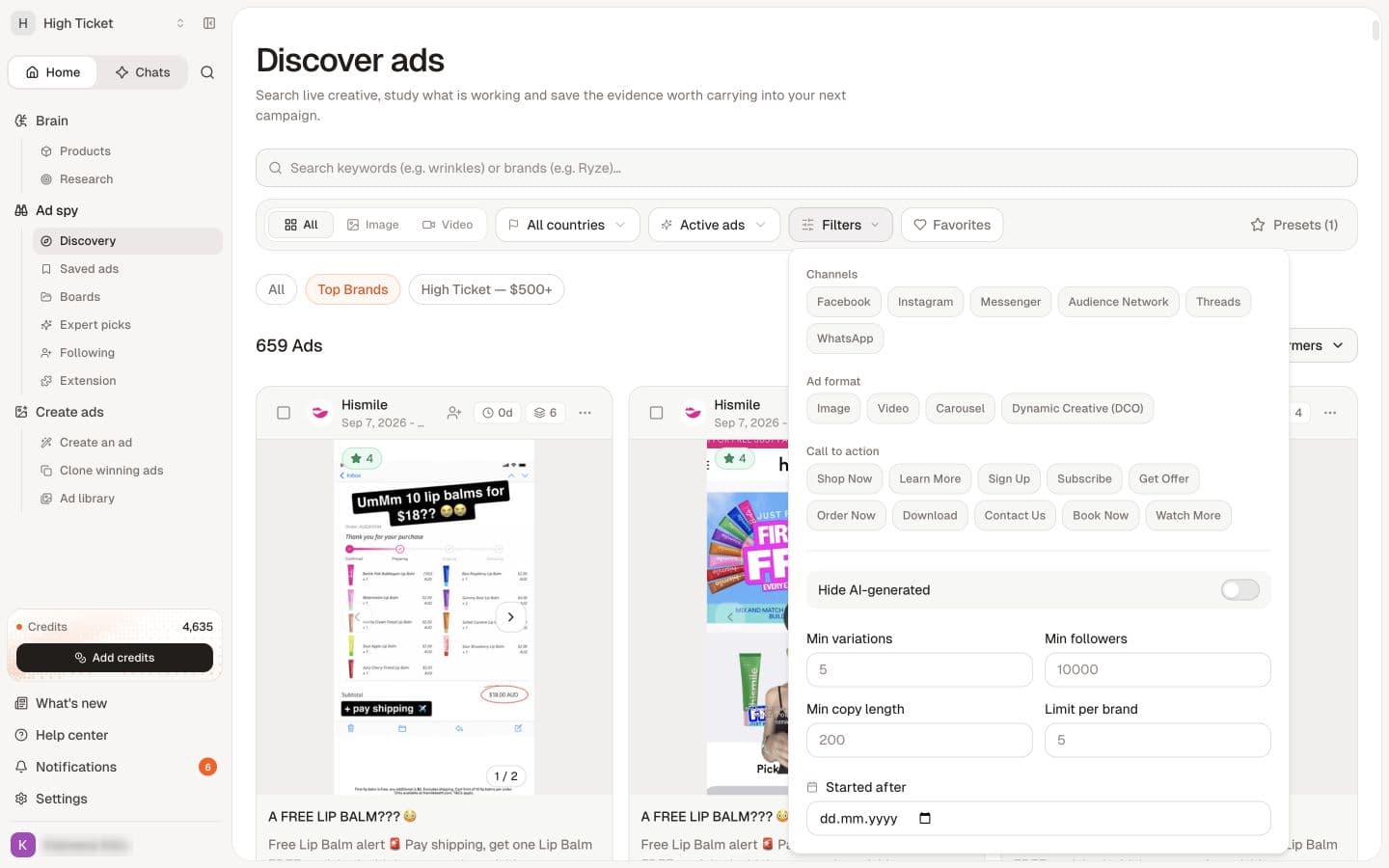
Open Ad spy → Discovery. The current screen is called Discover ads. Start with a clear research question, such as how other brands explain a feature or answer an objection.
Use the filters available in your workspace to narrow the examples to your research question.
Watch the walkthrough
Read the walkthrough steps
- Search Ad spy for relevant creative.
- Narrow the results with media and detailed filters.
- Open Details to review the creative, source and dates.
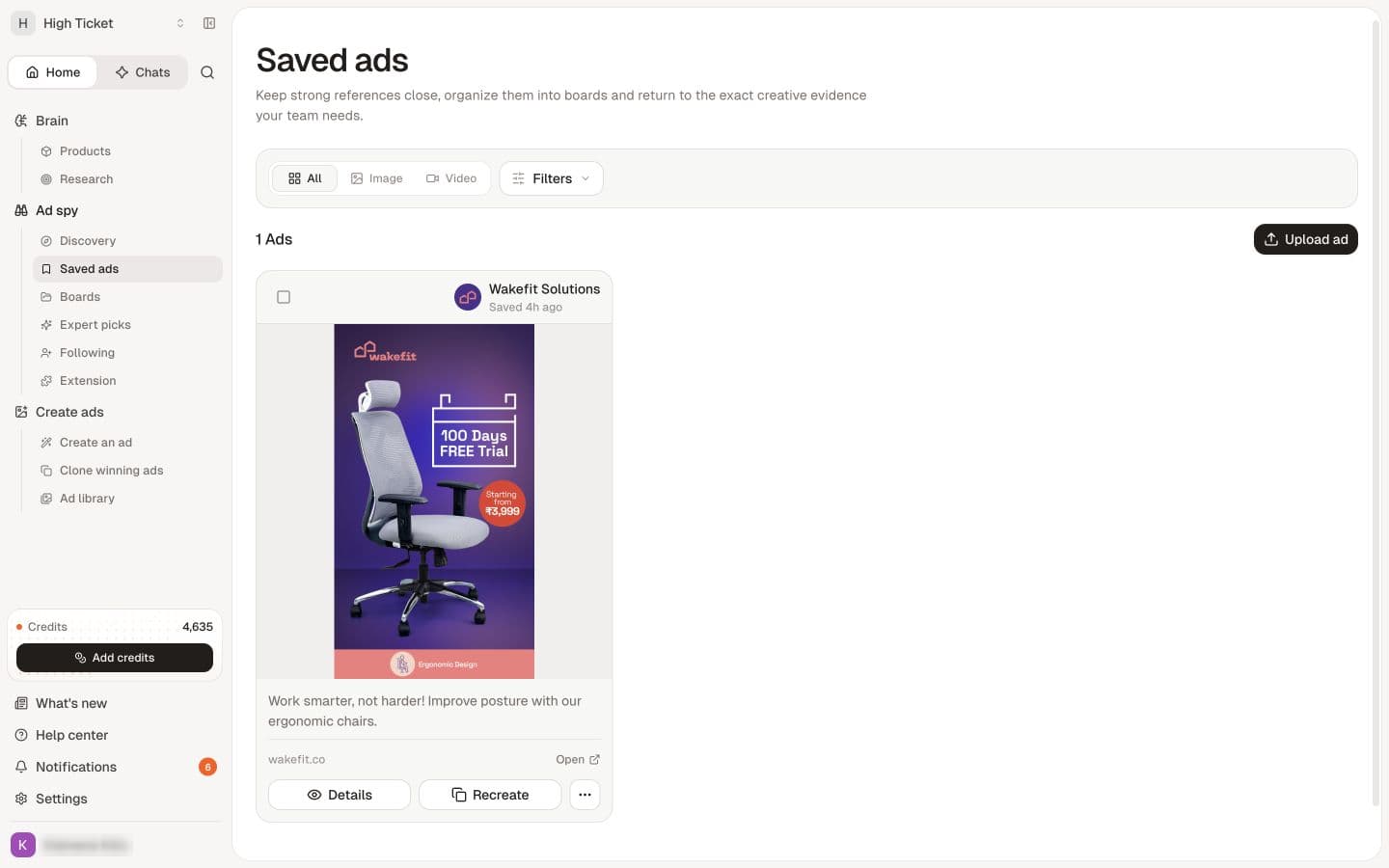
- Reopen saved references in Saved ads.
- Organize references into Boards for your next test.
Search and filter
- Enter a brand or phrase in Search keywords or brands.
- Choose All, Image or Video for media type.
- Review the country and active-status selections.
- Open Filters if you need more detail, such as channel, ad format, call to action or start date.
- Review the sort order and results before narrowing further.
If there are no results, remove filters one at a time and try a broader term. An empty result does not prove that a brand has never advertised.
Before you type anything, Discovery shows a feed of recommended ads with chips for All, Top Brands and a high-ticket group, which is a reasonable way to browse without a query in mind. The Discovery page also has Saved ads and Following views; the sidebar's Saved ads entry opens the first, and the second is the ad feed from brands you follow (see Follow brands).
Sort the results
Three options for a search, with Newest selected by default. The Following feed adds Recommended.
| Sort | What you get |
|---|---|
| Newest | The most recently launched ads. Good for spotting what a competitor has started testing. |
| Top Performers | Ads with the most impressions. Switch to this when you want widely shown rather than new. |
| Stars | Ads ordered by Sellify's own ad score. |
Detailed filters
Country and Status sit in the toolbar next to the media-type choice. Country offers All countries plus the major markets and applies to keyword searches; Status is Active ads or All statuses. Out of the box you see active ads from all countries.
Filters opens the rest. A count on the button shows how many are active, each applied filter appears as a chip you can remove, and Clear filters resets everything.
| Filter | Options |
|---|---|
| Channels | Facebook, Instagram, Messenger, Audience Network, Threads, WhatsApp. |
| Ad format | Image, Video, Carousel or Dynamic Creative (DCO). Shown when media type is All. |
| Call to action | The button on the ad, such as Shop Now, Learn More or Sign Up. |
| Hide AI-generated | A switch that drops ads Sellify has flagged as AI-generated. |
| Min variations | Only ads running at least this many versions. |
| Min followers | Only brands with at least this many followers. |
| Min copy length | Only ads whose copy is at least this many characters. |
| Limit per brand | At most this many ads from any one brand. |
| Started after | Only ads launched after a date. |
Min variations is the one worth knowing about. Brands run many versions of an ad they believe in, so filtering for ads with several variations is a decent proxy for what they are backing. It is still a research signal, not performance data.
Save a filter preset
A combination you use often can be kept. Select Save in the toolbar to open Save filter preset and name it. Once you have some, the button reads Presets with a count; from there you can apply one, rename or delete it, and choose Set as default so Discovery opens with it.
Read an ad
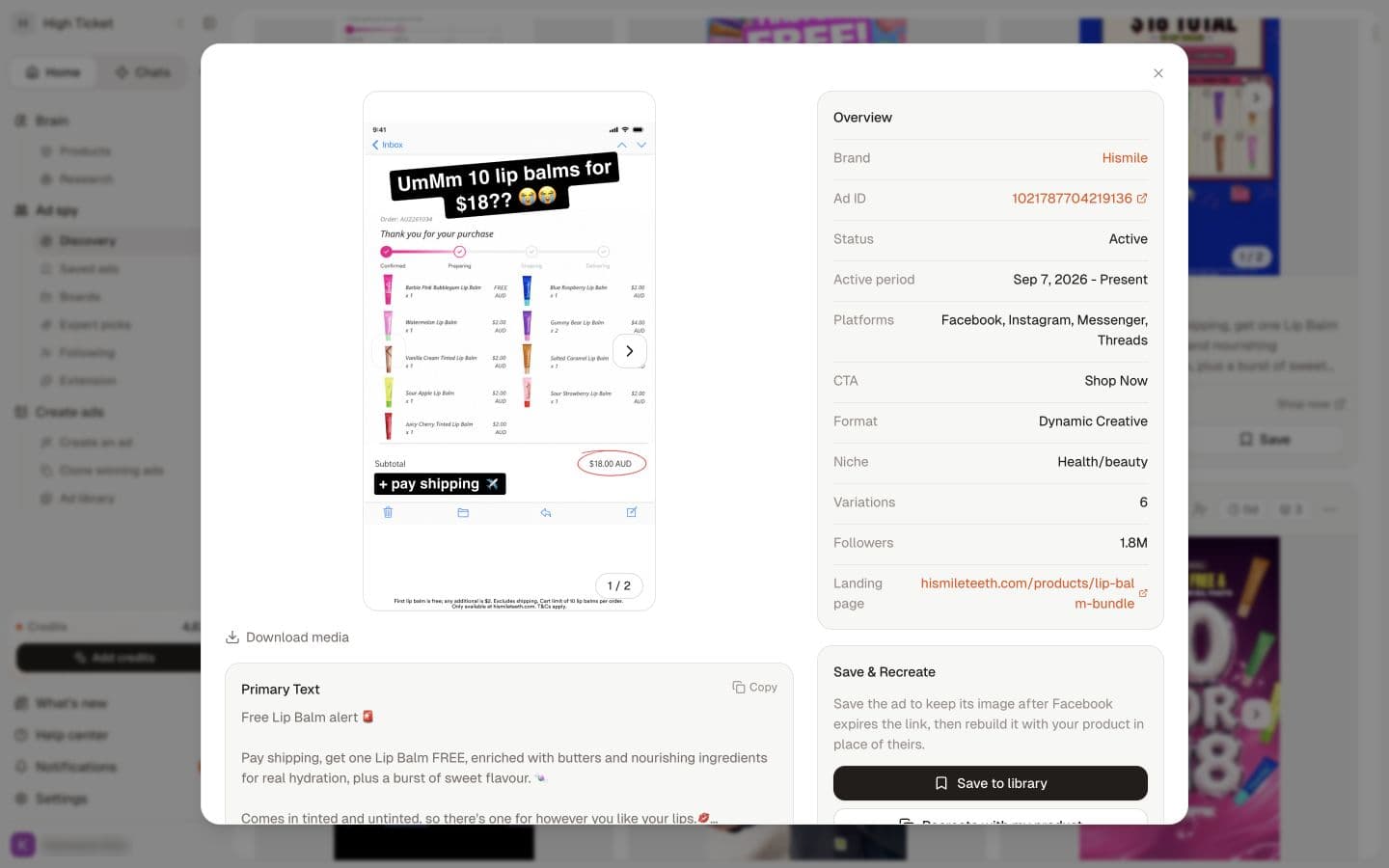
Use Details to inspect the creative and the information available for that ad. Check the brand, visible copy and dates. The destination link opens the advertiser's page; treat it as an external source, not a Sellify feature.
Labels such as Top Performers, a long run time or several variations are research signals. They are not access to the advertiser's profit, spend or conversion data.
Each card shows the creative, the brand and the period it has been running, such as a start date followed by "Present" for an active ad. The details panel adds rows for Brand, Ad ID, Status, Active period, Platforms, Variations, Followers, Landing page, Format and Niche. A note tells you whether the ad came Live from Meta or From our archive, with how recently the archive was updated. Opening an ad this way costs about 0.15 credits.
Selecting the brand name instead opens that brand's own page. See Follow brands.
Save the useful examples
Use the ad card's Save action and follow the available save options. Reopen Saved ads to confirm the item is there. Use Boards for groups of related references where that option is available.
Keep generated creative in mind separately: Ad library under Create ads is for your creative work; Saved ads under Ad spy is for saved research references.
Follow a brand
Use Follow brand on a relevant brand and look in Following to revisit followed brands. Expert picks provides another selection to explore. Neither a follow nor an expert selection means the brand's claims are verified for your product.
Only keep references that answer your research question. Record what you learned, then turn the observation into your own angle.
Act on several ads at once
Tick the checkbox on each card to select it. A bar appears showing how many are selected, with three actions:
| Action | What it does |
|---|---|
| Add to Board | Saves every selected ad to the boards you choose. |
| Copy Scripts | Copies the ready transcripts of the selected video ads to your clipboard, grouped by brand. |
| Download Scripts | Downloads the same transcripts as a file. |
Only videos that already have a transcript are included; the confirmation tells you how many selected ads had none yet.
Recreate an ad with your product
Recreate with my product on an image ad opens Recreate this ad with my product, where you choose an Aspect Ratio and a Product. Sellify then generates a new ad around your product using the reference's structure. Video ads cannot be recreated this way.
The result is a generated ad, so it appears in Create ads → Ad library, not in Ad Spy, and it is billed like any other image-ad generation. Use it to borrow a layout or structure, not the advertiser's claims or assets; see Use a reference without copying its claims.
Transcribe a video script
On a video ad, Transcribe asks What would you like to get? with two choices:
- Transcript only: the spoken words with timestamps, for rewriting a script to film yourself or with a creator. Lower credit use.
- Full analysis: the words, visuals and creative strategy, broken down scene by scene under Video insights.
Once either has run, the button changes to View transcript or View analysis. Analysis runs in the background; you can leave the page and come back.
What each action costs
Ad Spy is metered in small amounts. Code defaults are below; your plan's provider configuration can override them, so check Understand credits for your balance.
| Action | Credits |
|---|---|
| Search, per page of results | about 0.15 |
| Open an ad's details | about 0.15 |
| Fetch a followed, recommended or searched brand's ads | about 0.15 |
| Transcript only | about 0.25 |
| Full analysis | about 3 |
| Brand recommendations for a product | about 3 |
| Save from the Chrome extension, when Sellify has to fetch the ad from Meta (archive saves and already-saved ads are free) | about 0.15 |
Following a brand, creating boards and sharing them do not use credits.
If something's not right
Related
Plan competitor research · Organize saved ads into boards · Follow brands · Study curated expert picks · Save ads with the Chrome extension · Understand credits