

Manage your personal account
Find profile, appearance and security settings without changing workspace ownership.
Open Settings in the app sidebar. Under Personal, use Profile, Appearance or Security. These settings concern your own account rather than a product or the workspace's commercial plan.
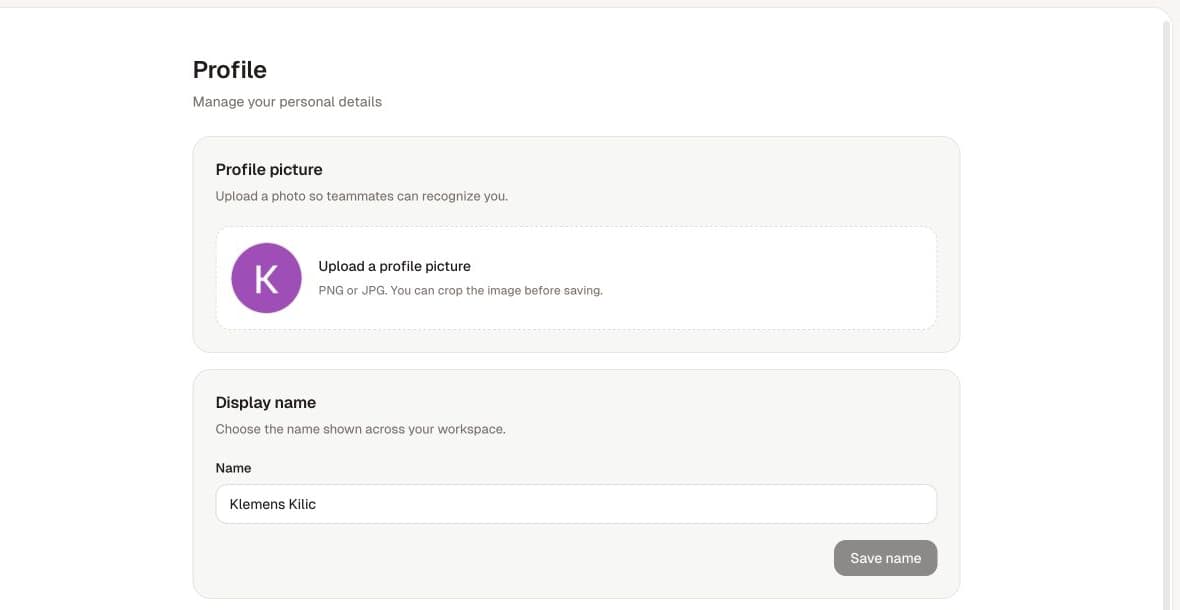
Profile
On Profile, edit Name under Display name and select Save name. The profile picture control accepts PNG or JPG and lets you review a crop.
Change your email
Under Email address, enter the intended New email and select Change email. Follow the confirmation and verification messages sent by the service. Keep access to both inboxes and continue using the confirmed sign-in address until the change completes.
If a link expires, request a fresh change from the account settings. Do not forward authentication links to support. See email-change troubleshooting.
Appearance
Choose Light, Dark or System in Appearance when those options are available. This changes how the app looks to you; it does not redesign a store or an ad.
Security
Use the password and session controls shown in Security. Follow the current validation requirements. An account created through a social sign-in method may have a different password setup state from one created with email and password.
Review active sessions before revoking access, and keep the current sign-in method available. Do not change security settings merely to fix a product-generation error.
Delete account
Read Danger zone → Delete account carefully. The current product requires another owner for workspaces you own, or their deletion, before deleting your account. Account deletion and subscription cancellation are separate matters to verify.
For login problems, start with Sign up versus Log in. For workspace identity or billing, use workspace settings.